


ArcGIS Mapping for SharePoint allows you to develop functionality for the ArcGIS Map Web Part. To learn more about this capability, refer to the topic About Extending The Map Web Part. Custom functionality for the Map Web Part is packaged in a compiled Silverlight application or xap file. These xap files are referred to as extensions. To make extensions available to the Map Web Part, ArcGIS Mapping for SharePoint provides a document library, called ArcGIS Mapping Extensions, where Map Web Part extensions are stored.
The Map Web Part provides two vehicles for extensions to surface functionality - commands and behaviors. Commands offer a simple way to plug logic into the ArcGIS Map Web Part that should be initiated by the user. Map behaviors provide a way to surface functionality that should always be enabled.
To get started with extensions, the first step is to write and compile a command or behavior into a xap file. For information on creating a command, refer to the Writing Commands topic. For information on creating a behavior, refer to Writing Map Behaviors.
Making extensions available to the Map Web Part
Making an extension available to the Map Web Part simply requires adding the compiled Silverlight application that contains the extension's logic to the ArcGIS Mapping Extensions document library. To do this:
-
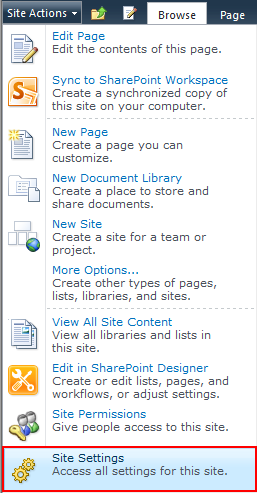
Navigate to the Site Settings page by opening the Site Actions menu and selecting Site Settings:
-
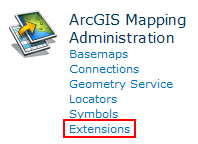
Under the ArcGIS Mapping Administration heading, click Extensions:
-
The Upload Document dialog appears. Click the Browse button to open the Choose file dialog. Locate and select the xap file containing the extension, then click Open:

-
The file is added to the library:

-
Now, when editing ArcGIS Map Web Parts that are within the same site collection, the commands and behaviors contained within the extension will be available.